WhatsApp Business Web login is one QR scan on a phone you already have. Everything painful about it comes later: 5 screens on one inbox, a logout when the phone sits unused for two weeks, and no record of who answered whom.
People look for it constantly. In a Google Trends pull for India (the 24 hours to 10 October 2026), the top 7 related queries were all spellings of WhatsApp Web or WhatsApp Business Web. Login searches followed at about a third of that interest, and Ubersuggest puts “whatsapp business web log in” at roughly 9,900 searches a month in India.
WhatsApp Business Web for PC runs in the browser, so Windows, Mac and Linux all work. Current versions of Chrome, Edge, Firefox and Safari are fine.
| Option | How you sign in | Good for | The catch |
|---|---|---|---|
| WhatsApp Web (web.whatsapp.com) | QR code, or an 8-character phone code | One person answering chats | Logs out if the phone is unused for 14 days |
| WhatsApp desktop app (Windows, Mac) | QR code | The same, in a window of its own | Same limits as the web version |
| Browser extensions | Varies | Bulk sending, extra buttons | Unofficial. WhatsApp warns that linking through unofficial apps or sites can put your account at risk |
| Shared team inbox (WaMark) | Each agent’s own login, no QR | Teams that share one number | The number has to be on the WhatsApp Business API |
This works with the WhatsApp Business app on Android and iPhone.
Keep the phone online while chats sync the first time. After that the web session keeps running even if the phone goes offline, until the 14-day limit further down.
Can’t scan the QR code? WhatsApp Web has a second route that needs no camera.
WhatsApp lets you link up to 4 devices plus the phone, so 5 screens can sit on one number (the WhatsApp help center lists the limit). They all share one login, and that causes trouble quickly.
The way out is the WhatsApp Business API, which lets each person log in under their own name.
One catch: connect a number to the API the standard way and it stops working in the WhatsApp Business app, and with it on WhatsApp Web. Meta has a coexistence option that keeps both running, with limits: group chats and calls don’t carry over, and broadcast lists, labels and quick replies are switched off.
WaMark connects numbers the standard way, so use a number you’re ready to move, or start a new one for the shared inbox.
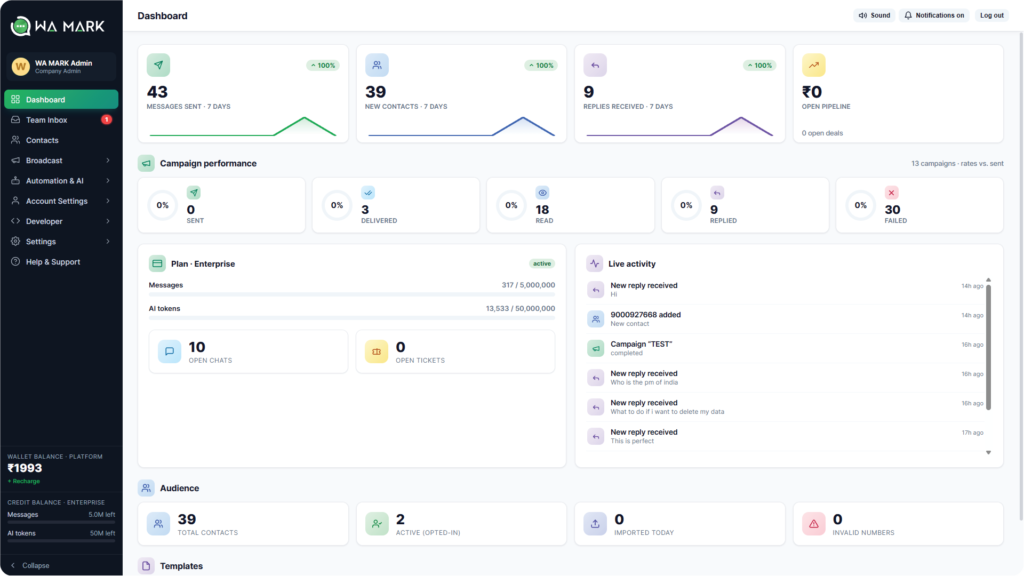
WaMark gives each agent their own login at app.wamark.in. There’s no QR code to scan, it runs in any browser, and there’s an Android app too. Routing rules hand new chats to agents by round-robin, by name or by department, so a customer gets one reply from one agent.
Starter is ₹2,999 a month for 3 agents on 1 number. Growth is ₹6,999 for 10 agents and 3 numbers, with chatbots and campaigns.
Prices are before 18% GST. Meta bills your WhatsApp Business account directly for the messages you send, and WaMark adds no platform fee on top. See the full plans.
Want the costs first? Read WhatsApp Business API pricing in India, or what the WhatsApp Business API is if the term is new.
See the shared inbox with your own chats
Each agent signs in with their own login, and chats are routed to the right person.
Start with WaMarkSee pricingOpen web.whatsapp.com on your computer. On your phone, open WhatsApp Business, go to Linked devices, tap Link a device and scan the QR code on the screen. Your chats load a few seconds later. That is the whole WhatsApp Business Web login.
Yes. On web.whatsapp.com choose the phone number option under the QR code and enter your WhatsApp Business number with the country code. An 8-character code appears. On your phone, open Linked devices, tap Link a device, tap Link with phone number instead and type the code.
Only if you want a window of its own. WhatsApp Business Web runs in your browser at web.whatsapp.com, and WhatsApp also has desktop apps for Windows and Mac that link the same way.
Linked devices log out when the phone goes unused for more than 14 days, and WhatsApp disconnects linked devices that sit idle for 30 days. Open WhatsApp Business on your phone at least every two weeks, and link again if you were logged out.
WhatsApp allows up to 4 linked devices plus your phone on one account, according to its help center. They all share one number and one login.
Yes, by each linking a device to the same account, up to the limit of 4. Everyone sees every chat and replies go out under the business name, with no way to assign a chat. A shared team inbox like WaMark gives each agent their own login and routes chats to agents. For that, the number has to be on the WhatsApp Business API.
Give each agent their own login
Plans start at ₹999 a month before 18% GST. Connect a number and your team shares one inbox.
Start with WaMarkSee pricingRelated guides


